
- How to update your profile settings?
- How to enable Single Sign On for Colt Online?
- What options are available in Colt Online?
- Which notifications/subscriptions are available in the contact management module?
- How do subscriptions and the contact management module in colt online work?
- How can I view the notifications/subscriptions that I am set up to receive from colt?
- What is Planned Works ?
- What is the Order Management Portal?
- Colt Versa SD WAN & SASE – External Service Guide
- Getlink LDN Access Procedure
- Dedicated Cloud Access External Service Guide
- Colt Operator Connect Management Portal for Partners
- Assign a role to an existing user
- Remove the role of a user
- Modify the account group of the user
- Create a new users and assign the IPG role
- Ethernet VPN- External Service Guide
- Ethernet Line- External Service Guide
1. Introduction
Colt has set up new containers under Getlink LDN project where access provisioning to these containers will be done by Colt Physical Security Team. A new Bluetooth lock technology from Abloy has been installed in these containers which require a special access procedure to be followed for gaining access by the Customer, Colt teams and 3rd party maintainers.
This Standard Operating Procedure (SOP) identifies the key requirements which must be adhered to as a minimum in order to ensure effective and secure access provisioning is carried out for all authorised individuals who will need access to these Getlink containers. An integral part to protecting our properties is the monitoring of alarms associated with physical security systems.
2.0 General
2.1. Scope
The requirements of this SOP is to define the access control procedure for gaining authorised access by Colt Employees, Contractors and Customers to Getlink LDN containers.
2.2 Purpose
The purpose of this procedure is to:
- Define the access procedure through Abloy Beat app
- Provide the instructions for access procedures Getlink LDNs as relevant to various category of individuals
- This document also acts as the User Guide for reference by all interested parties.
- No part of this document in full or part will be circulated, distributed, printed, photocopied, without explicit approval from Physical Security team as this procedure is for intended access and not for distribution to unuathorised entities or individuals.
- Authentication and validation of the persons to be granted access rests with Colt Sales, Customer Account management, any other Colt team to ensure only authorised users access Colt critical infrastructure on need to access basis.
2.3 Amendments
Suggested changes or amendments to this document may please be forwarded to the Physical Security Team, together with a business justification. All suggestions will be acknowledged and, if rejected, the reasons given for their rejection. Accepted changes will be administered through the document change control system employed by the Digital Information Office and approved by Global Head of Physical and Personnel Security in writing over email.
2.4 System Requirements
In order to be able to implement the requirements of this SOP, security officers will require access to a the systems identified below. System access rights will be co-ordinated by the Colt Core Physical Security Team. Security Officers require a valid Colt Windows account and system access to:
- Abloy Cumulus Web portal hosted by Abloy
- Abloy Beat Cumulus App
- SharePoint for recording access details
- ServiceNow (SNOW)will be the platform for raising requests for internal users(Employees and Contractors) . For Internal users a Profile creation ITSR on ServiceNow is a must before the Node/LDN Site Access Request ITSR is visible to raise physical access requests to Node and LDNs.
Colt Online (COL)will be the platform for raising Physical Access requests by external users(Customers, their 3rd parties). The user guide for customers for such access is hosted in Colt Help Section for Physical Access to Nodes and LDNs section. Link: https://coltonlinehelp.colt.net/request-physical-access-for-nodes-and-ldns/
3.0 Responsibilities
3.1 Colt Core Physical Security Team
The Colt Core Physical Security team is responsible for:
- Documenting SOPs
- Amending/updating SOPs
- Periodic review of SOPs
- Issuing updates and amendments to the stakeholders for onward dissemination to the site engineers/maintainers upon any change of process
- Access provisioning for Getlink LDNs on Abloy Cumulus Web portal hosted on Abloy portal.
- Mapping and authorizing access / locks for identified Getlink LDNs on the Web portal as and when they are added
3.2 Internal Users – Colt Employee
- Adding/Removing Users based on New Joiners/leavers for internal users on ServiceNow as well as informing Physical Security Team for Leavers to revoke access as part of periodic access review.
- Also ensuring that SOW Contractors entrusted for escorting are on valid SOW ID and background screening confirmation exists
- Sharing details of contractors, Colt employees needing access with Physical Security Team for registration on Abloy portal with Physical Security Team by marking a mail to
3.3 External Users – Customers Admins
- For Customers and 3rd party maintainers, they are responsible for managing access of users from their side and it is the Customer Administrator’s responsibility to ensure removal of access for Customer Users for raising access tickets on Colt Online who no longer have a valid business need to raise requests in situations of termination/resignation.
4.0 Getlink LDN Access Procedure
4.1 Technician/field partner (Internal User)
The technician /field partner who regularly visit the LDN for maintenance activity – the access will be added on their profile in each country for identified LDNs and are responsible to:
- Ensure ServiceNow tickets are raised at least 24 hours in advance to access the LDN.
- Raise ticket on Service Now by selecting Node/LDN Site Access Request ITSR.
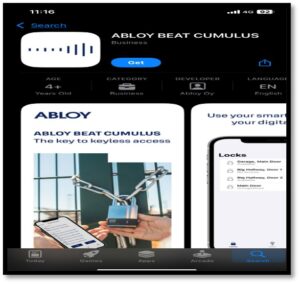
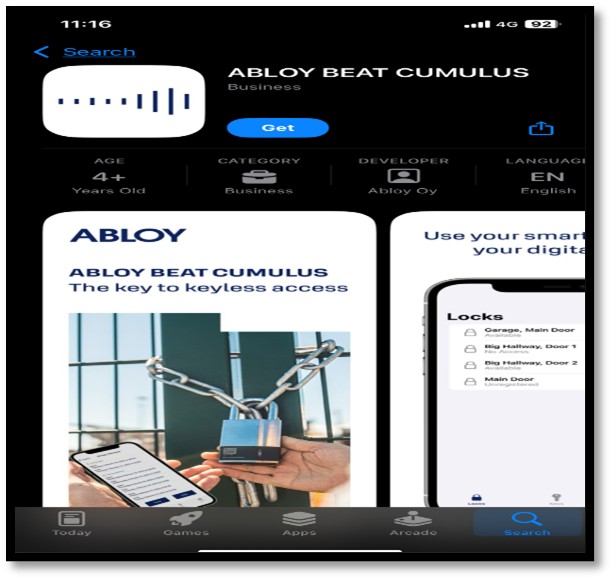
- Download the Abloy Beat App – Find the mobile application on Google Play (Android) and the Apple App store (iOS) with the name iOS ABLOY BEAT CUMULUS.
- Minimum Mobile Requirements – Android 10 or newer version or iOS 13 or newer version
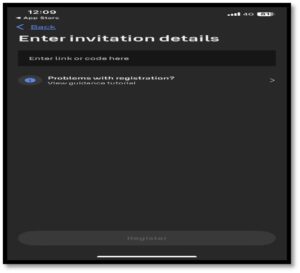
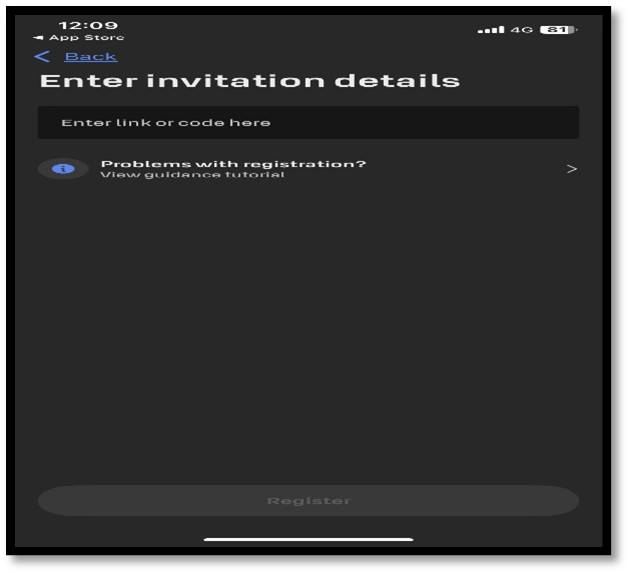
- Users are sent an invite to register on Abloy app by Physical Security Team ([email protected] ) on the CUMULUS app requiring users to provide their mobile phone numbers and email to security team , after the users are validated by the Colt Account/O&E Teams to add them on need to access basis. An SMS as well as an email will be sent then to the user’s registered mobile number and registered email with an invite code to complete the registration.
- Each mobile device will be registered with advanced credential technology. Security Team will register the user contact number and sent the system invite message.
- Similarly, each CUMULUS locking device will also have a unique ID so that all access tokens are granted for specified hardware and users for a certain time frame.
- Calls Physical Security team to notify departure and also inform them of any issue with locking, so that the ServiceNow ticket can be closed finally. Action for Physical Security Team is to raise a system defect ITSR on SNOW in case the engineer informs of any issue with locking of the door properly.
- For Internal users a Profile creation ITSR on ServiceNow is a must before the Node/LDN Site Access Request ITSR is visible to raise physical access requests to Node and LDNs.
4.2 Customer User
The customer user who visits the Getlink LDN for their equipment or network maintenance activity – the access will be added on their profile in each country for identified LDNs for requested duration and each access request will need a ticket to be raised as access will be enabled for requested duration. No permanent access is granted to customer use.
- Ensure Colt Online tickets are raised at least 24 hours in advance to access the LDN.
- Raise physical access request ticket on Colt Online by following the process hosted on Colt Online Help Section ,
- Download the Abloy Beat App – Find the mobile application on Google Play (Android) and the Apple App store (iOS) with the name iOS ABLOY BEAT CUMULUS.
- Minimum Mobile Requirements – Android 10 or newer or iOS 13 or newer version
- Users are sent an invite to register by Physical Security Team ([email protected] ) on the CUMULUS app with their mobile phone numbers and email to be provided from their end, requiring users to provide their mobile phone numbers and email to security team , after the users are validated by the Colt Account Teams to add them on need to access basis.. An SMS as well as an email will be sent then to the user’s registered mobile number and registered email with an invite code to complete the registration.
- Each mobile device will be registered with advanced credential technology. Security Team will register the user contact number and sent the system invite message.
- Similarly, each CUMULUS locking device will also have a unique ID so that all access tokens are granted for specified hardware and users for a certain time frame.
- Calls Physical Security team to notify departure and also inform them of any issue with locking, so that Colt Security team can get the rectified with support from concerned team.
5.0 Abloy Beat App downloading and activation
- APP IOS Version – The new app version can be found in the app store under the name or by following the direct link https://apps.apple.com/app/abloy-beat-cumulus/id1562625672
- APP Android Version – The new app version can be found in the Google Play store under the name or by following the direct link ABLOY BEAT CUMULUS – Apps on Google Play
Activating The Application:
- An invitation link will be sent to the user over and email and SMS from Abloy portal managed by Physical Security Team, once the validation of customer users and internal users is completed by Colt requestor team and Physical Security Team.
- Each mobile device will be registered with advanced credential technology. Security Team will register the user contact number and email id of the person needing access and send an invite message over email and SMS registered with Colt through ticket.
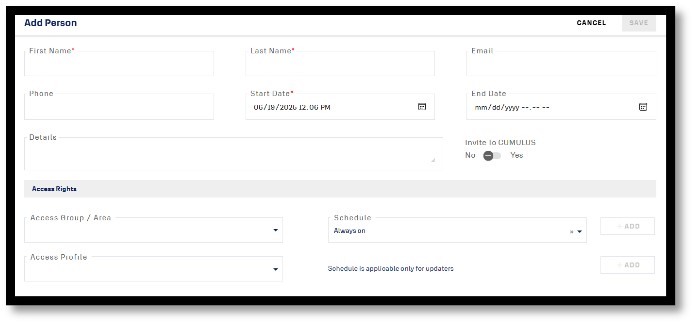
- The invitation link takes the user to the application store to download Abloy Beat Cumulus app. Links provided in above sections.
- The application requests permission to collect error reports and analytics.
- After installation, application still needs to be registered.
- Press the invitation link you received earlier. That will complete the registration.
- By enabling location permission, the application can connect to the locks for the sites where the user need access.
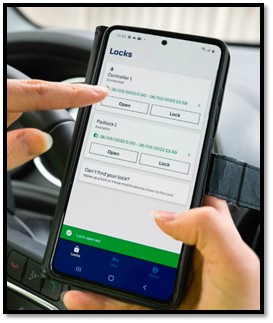
- In the “Locks” view, you can see the locks after pressing the button at the bottom of the lock.
- If you have a key to the lock, swipe down to reveal it.
6.0 Step by Step User Guide for Abloy Beat Cumulus App usage
Using the Application:
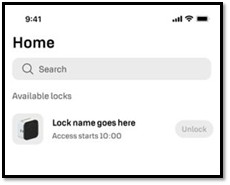
- Once you accept the necessary permission, you will land on the homepage of the application.
- When approaching an active locking point, “Unlock” will appear on the home page.
- My locks shows the access you have, in case it’s empty drag down to update the accesses.
- If facing issues using the application –
- Check if Bluetooth is turned ON
- You can see the access permissions in My Lock view

7.0 Emergency Access Procedure
Emergency access procedure will be activated only during exceptional circumstances whereby the access to the LDN door will be remotely disabled through Niagara BMS system, where Security team will be given permissions and access by TIO team to remotely unlock the door in the event of only the following scenarios and will not be the routine for granting access:
- Network outage, power outage, Break in, Door access issues.
- The individual is not able to open the door through Abloy Beat app due to pairing issues.
While the access is facilitated on exceptional basis a SNOW or COL ticket will be required for records and audit the same day. The email notifying the incident will need to write by a Colt SPOC explaining the emergency and access provisioned post due authentication of the person needing access. The said email to be written to [email protected] .
- The requestor needs to call the Physical Security team at +442071897214 if facing any issues for access.
8.0 Document Review
The document will be reviewed and amended only when there is a major change necessitated to the SOP or any procedure basis an incident, risk assessment or change of technology or associated procedure.
************************************************
ANNEXURE -A – Hardware Specification
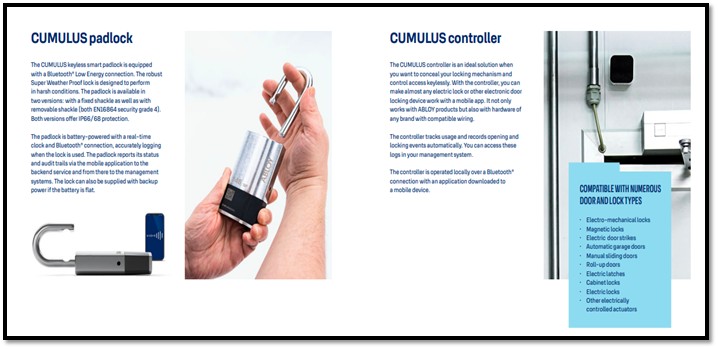
ABLOY BEAT CUMULUS APPLICATION INTERFACE
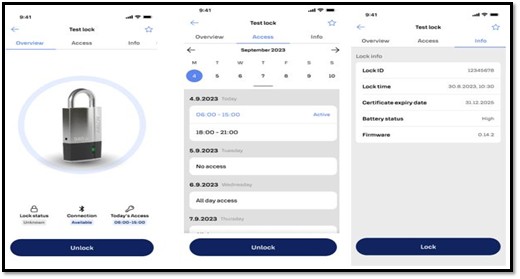
- The “Locks” page is the “Home” page. Here the users have an easy access to all locks active and available in the Bluetooth range for opening. The users are also informed visually about the type of the lock.
- To Open the lock, just press “Unlock” Additionally, a new feature called “Access pending state” is introduced. When the user is in vicinity to an active lock, the feature notifies the user of access being granted but not yet activated, ensuring users are informed about their upcoming permissions.
- “My Locks” page shows the list of the locks nearby with accessibility, filtering options by the lock type and the ability to set the most common used locks as favourites directly from the Lock view. The page also allows users to search locks by its name.

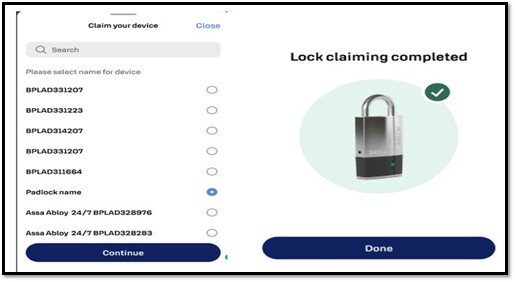
- The new locking device claiming process introduces a user friendly and time saving way to search the locks by their name instead of scrolling the list of created locks in the system. This will make the process faster especially in case you have lots of devices listed.
” Lock information” page
Previously the users could see all their access permissions at the “Keys” page. Based on the feedback this specific access view is now available through selecting a specific lock which opens the “Lock information” page.
On this page the users can check details of their accesses for any specific locking device. Calendar view has also been included to this page to help with checking access details.
——————————END of PAGE————————————————————————